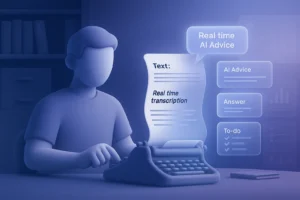

How to transcribe audio to text is a common question after a meeting, a call, or a long voice message.
In this guide, I’ll show you the simplest ways to transcribe audio: live while you’re talking, or from a file if you already have a recording.
In just a few minutes, you can get a complete, readable, ready-to-use text—without listening to the audio again.

How to transcribe audio: which method to choose (live or from a file)
If you need to decide quickly, use this rule:
Meeting/call in progress → choose live transcription (instant text)
Recording already ready → choose file transcription (upload)
This way you don’t waste time and you go straight to the right method.
Real-time live transcription: voice to text during a meeting
When it’s best
Use it when the conversation is happening right now: a meeting, a call, a live class, a discussion with a client.
What you need (bare minimum)
- a decent microphone (your laptop mic is fine if the room is quiet)
- as little background noise as possible
- if you can, avoid people talking over each other (it improves accuracy a lot)
How to do it (step by step)
- Start a live transcription session
- Talk normally: the text is generated as you speak
- At the end of the call, quickly check only the “critical” parts: names, numbers, dates (then save)
Result
A text that’s ready right after the meeting—no need to re-listen to everything.

File transcription: turn an audio (or video) into text via upload
When it’s best
Use it when you already have a recording: meeting audio, an interview, a saved voice memo, or a video with clear audio.
What you need
- the file (audio or video) on your computer or phone
- select the correct language before you start
How to do it (step by step)
- Upload the file to the transcription tool
- Start the audio-to-text transcription
- Quickly review names/numbers/technical terms, then export or copy the text
Result
A complete, searchable transcript—useful for finding details and quotes.

More accurate audio transcription: 5 practical tips
- Record in the quietest environment possible
- Keep the microphone close to the main speaker
- Avoid people talking over each other (especially live)
- Always double-check names and numbers
- For long audio: split it into parts (easier to review)
How to transcribe audio for free (when it makes sense)
If you’re searching “transcribe audio to text for free,” you probably want to try it right away without wasting time.
The smartest approach is to test with a short audio clip (5–10 minutes) and evaluate three things:
- text quality
- speed
- how easy it is to export/copy
If it’s enough, keep going. If not, you’ll know exactly what’s missing (and what to look for in a tool).
Recommended tools to convert audio to text (quick pick)
If you need to choose a tool, evaluate 4 things: accuracy, speed, ease (live or upload), export options.
- Proactor AI — live + file upload; useful if you do meetings and want a fast workflow (text and, if needed, notes/actions).
- Notta — used for transcription and meeting notes (web + mobile).
- Otter — strong for meetings and team workflows.
- Microsoft Word (Transcribe) — handy if you work in the Microsoft ecosystem.
If you also want notes and action items from the transcript, try an AI note taker →Proactor AI
FAQ: how to transcribe audio (fast, free, accurate)
Is live transcription better, or file transcription?
It depends:
Live: perfect if the conversation is happening now (meeting/call).
From a file: ideal if you already have a recording and want to transcribe at your own pace.
What files can I use to transcribe audio to text?
Usually audio (e.g., MP3, WAV, M4A) and also video with clear audio. If the file is very long, it’s best to split it into parts for easier review.
How can I transcribe audio with high accuracy?
Reduce noise, keep the mic close, avoid people talking over each other, and always double-check names/numbers. Those are where mistakes matter most.
How can I transcribe audio to text for free?
To start, test with a short audio clip (5–10 minutes). Check quality, turnaround time, and export. If you need more control or longer files, consider a more complete tool.
Proactor AI
Want to turn audio into text in just a few minutes?
Try live during a meeting or upload a file—no more re-listening.
Transcribe now